
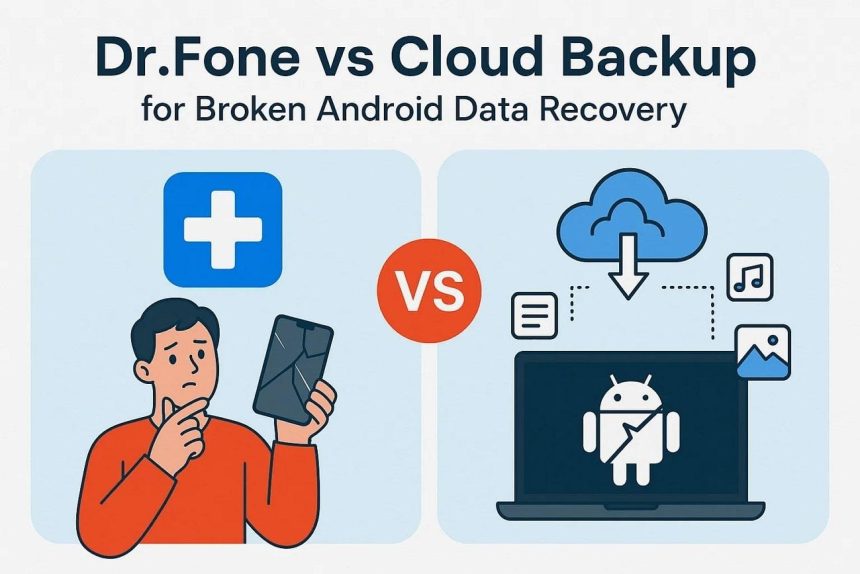
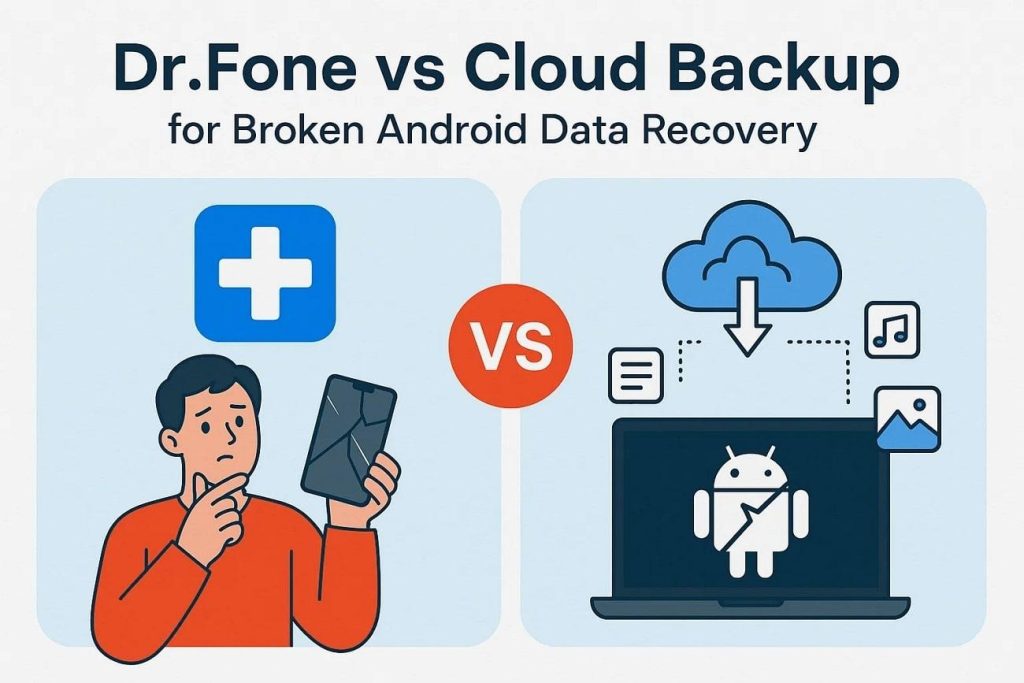
Many people lose important files when their phones break unexpectedly or crash. Broken phone data recovery can be used to restore valuable information such as messages and documents, without any damage. The correct method will save time and help one avoid frustration. This article explores two popular options, such as Dr.Fone and cloud backup, for Samsung and Android devices. Understanding these options clearly can save your valuable information with less hassle.
Part 1. What is Broken Phone Data Recovery?
Broken phone data recovery is the process of saving data from damaged devices. It helps retrieve all types of data, such as photos and files, from a phone that won’t turn on. For broken Android phones, specialized tools allow for safe broken Android data extraction. This process works even when screens are shattered or software malfunctions.
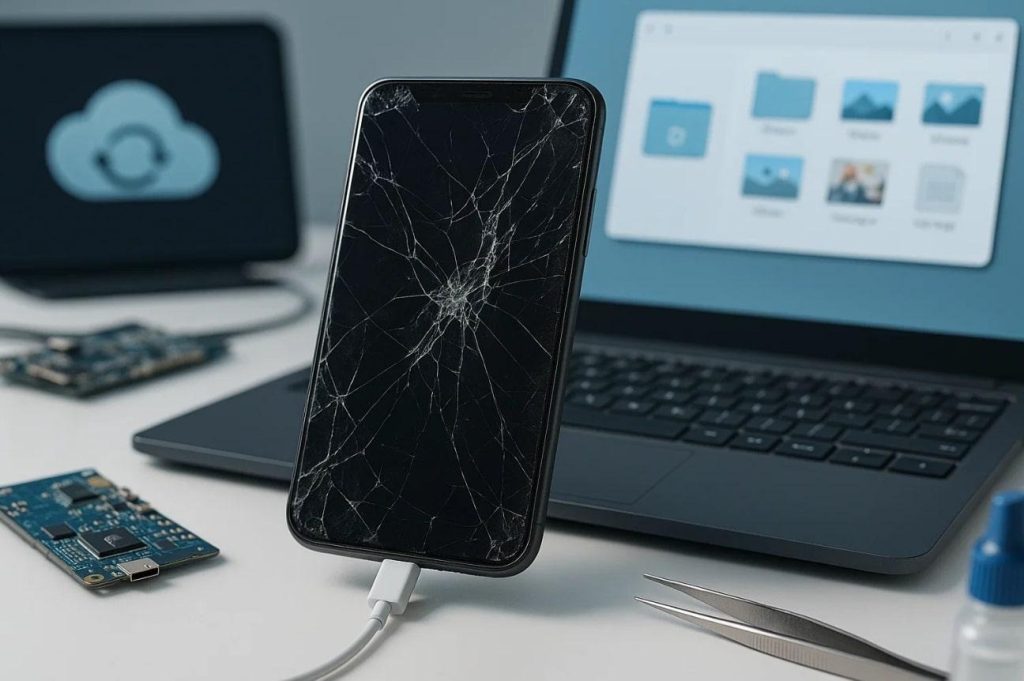
Users can even connect phones to a computer or use dedicated software to get their files back. Apart from that, cloud backups or SD cards are also helpful, but advanced techniques can recover data without them. The goal is to restore critical information quickly and securely.
Part 2. How to Perform Broken Phone Data Recovery Using Dr.Fone
To extract information from a damaged phone, a specialized tool is necessary, and Dr.Fone – Data Recovery (Android) will be one of the most useful. It is an advanced tool that can restore the file types of the Access 14,+ such as photos, videos, and call logs. Moreover, it lets you preview and choose specific files before recovering them to your computer.
Users can also recover data without requiring root access on many Android devices. Furthermore, this innovative tool supports the recovery of compressed data like ZIP or RAR archives during recovery. Plus, it provides broken Android data extraction even when the screen is black or unresponsive. The platform also displays recoverable files in real time, helping you quickly find what matters.
Key Features
- Broad Compatibility: Works with over 6,000 Android devices of top brands like Samsung and OPPO.
- WhatsApp Chats: Retrieves deleted WhatsApp and WhatsApp Business chats along with media attachments.
- Targeted Recovery: Allows targeting of specific file types to scan, speeding up the recovery process.
Detailed Guide to Recover Data from a Broken Phone Using Dr.Fone
Go through the given guide below to perform Samsung broken screen data recovery using the innovative data recovery algorithms of Dr.Fone:
Step 1. Access the Broken Data Recovery Tool
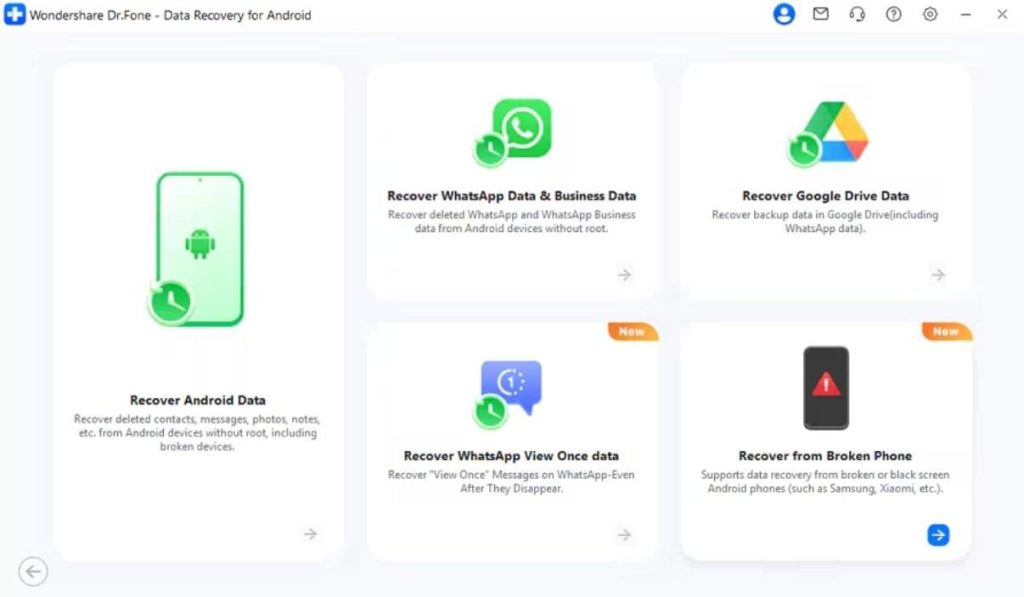
Open the “Toolbox” tab and opt for the “Data Recovery” feature, then select “Android.” Going ahead, choose “Recover from Broken Phone” and plug in your broken phone to the computer.
Step 2. Specify Your Phone Condition
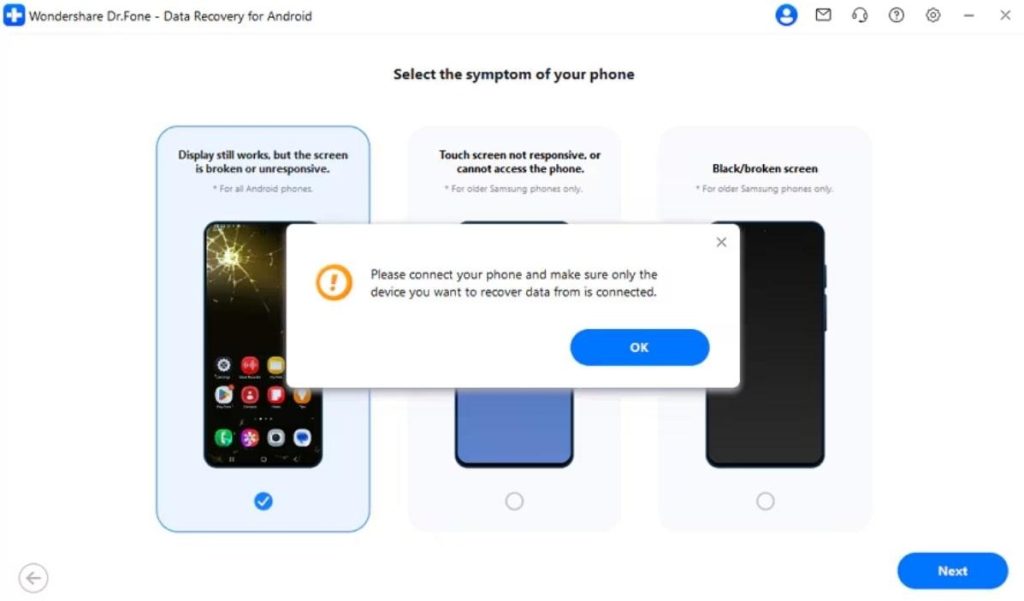
Indicate your phone’s current issue by selecting “Display Still Works, But The Screen is Broken or Unresponsive.” Afterward, click the “Next” button and confirm by pressing “OK” on the prompt.
Step 3. Recover Your Broken Phone’s Data
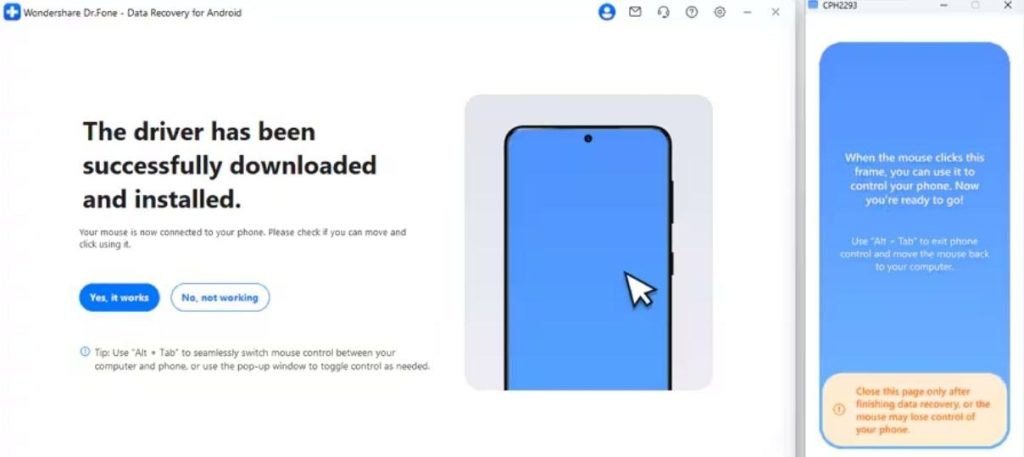
The tool will install the required drivers automatically. Once done, click “Yes, It Works” and start recovering your important files through your computer.
Use Cases of Using Dr.Fone
Dr.Fone is helpful in many everyday situations when a phone stops working suddenly. These examples show how people can use the tool to bring back their lost data safely:
- Water Damage: Helps when your phone falls into water and becomes unusable afterward. You can still recover saved items because the tool reads internal storage directly.
- System Crash: Works when a sudden software error freezes the phone and blocks regular access. Users can bring back saved data without fixing the entire system first.
- Black Display: Supports phones that turn on normally but only show a fully black display. You can pull out messages and photos because the phone hardware still responds.
- Forgotten Password: Useful when you cannot unlock your phone due to a forgotten password or code. Individuals can recover stored items without entering the lock screen at all.
- Boot Loop: Helps when the phone keeps restarting and you cannot reach the home screen. You can extract the needed files because the tool bypasses the repeating restart cycle.
Part 3. How to Execute Broken Phone Data Recovery Using Cloud Backup
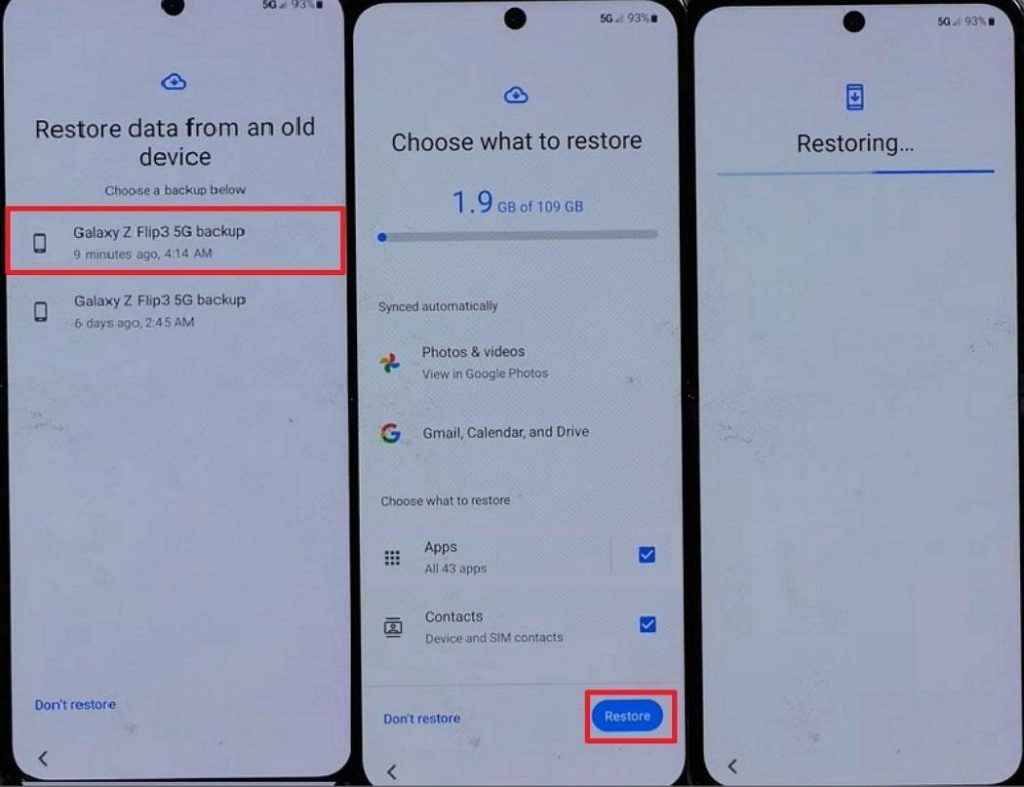
Cloud storage also safely keeps your files online, so you can recover them without needing the broken device itself. This is an effective technique in case you have previous backups. Users can restore data upon signing in with their Google account on a new device.
Besides, cloud backup ensures safe, convenient, and efficient broken phone data recovery. Take guidance from the steps to recover your lost data via cloud backup:
Step 1. During your new phone setup, tap “Next” and select “Can’t Use Old Device.” Then, sign in with your Google account using your email or phone number.
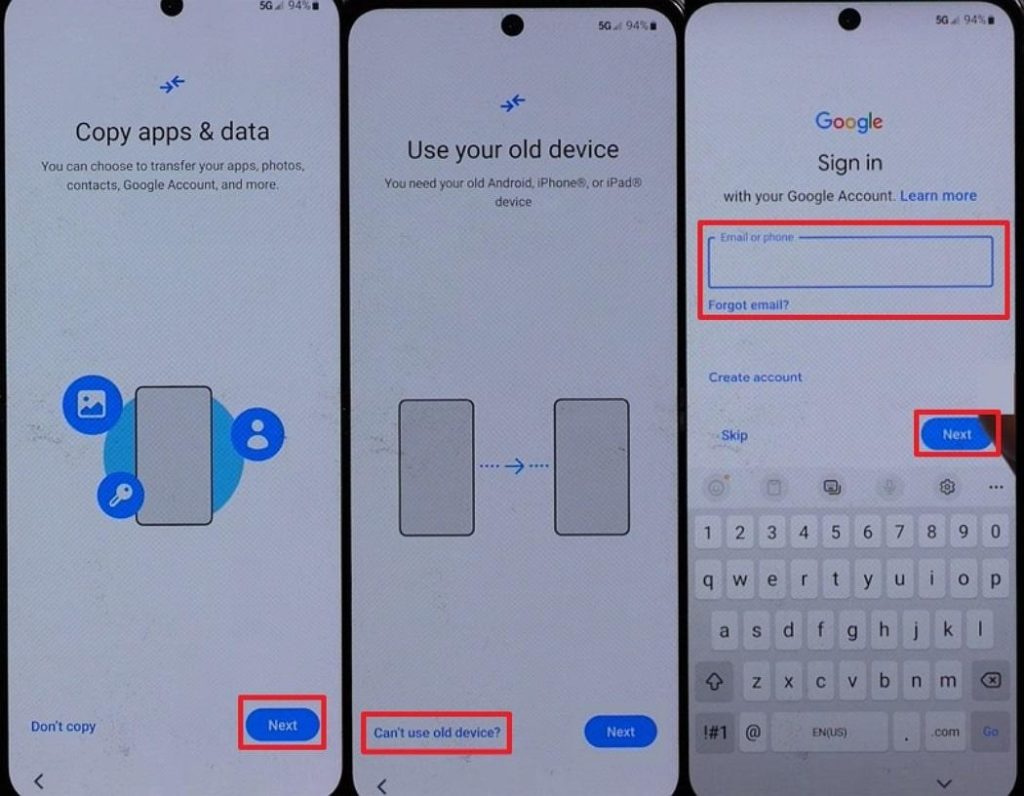
Step 2. After signing in, pick the latest backup and enter your old phone’s password if prompted. Upon doing this, choose the data you want to retrieve and tap the “Restore” button.
Cons
- Any files not backed up before the damage cannot be retrieved from the cloud.
- A reliable internet connection is needed to access and restore your data.
Part 4. Dr.Fone vs Cloud Backup: A Detailed Comparison
Choosing the proper recovery method becomes easier when you compare how both options work. This section gives a simple comparison table so you can quickly see which method fits your situation:
| Feature | Dr.Fone – Data Recovery (Android) | Cloud Backup |
| Recovery from Broken Devices | Works even if the screen is black or unresponsive | Only works if a backup exists |
| Supported File Types | 14+ types, including photos, videos, messages, call logs | Limited to files previously backed up |
| Device Compatibility | Supports 6,000+ Android devices, including Samsung | Restores on any Android device using a cloud account |
| Targeted Recovery | Allows selecting specific files before recovery | No selective recovery, restores full backup |
| Ease of Use | Step-by-step guidance, user-friendly | Simple, but limited control |
| Recovery Speed | Fast scanning and real-time previews | Slower depending on the internet and backup size |
| Reliability | Recovers data even from severely damaged phones | Cannot recover unsaved or unbacked files |
Hence, Dr.Fone stands out as the stronger choice because it works even when the phone is badly damaged. It offers more control by letting users select exactly what they want to restore. So, you should download and use Dr.Fone now to retrieve your damaged phone data.
Conclusion
In conclusion, this article has shown you the top 2 methods to help you recover damaged phone data. Also, following easy methods keeps your data safe and lowers stress during broken phone data recovery. Yet, the most effective recovery is recommended to be Dr.Fone – Data Recovery (Android). It works with many devices and can retrieve data even from seriously damaged phones.